
It’s that time of year again when the acquisition of drones is underway (think holiday season). Perhaps you have or will be receiving a brand-new drone.


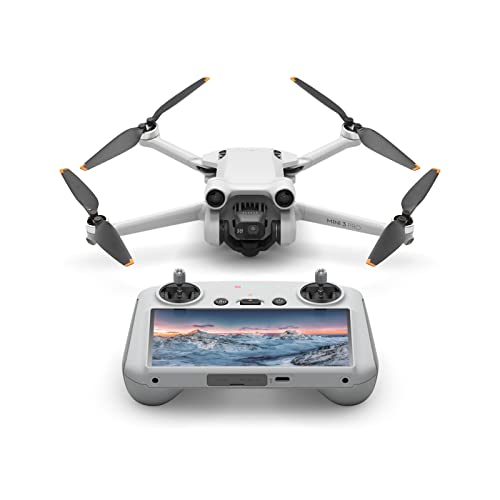
If you are new to drones in general and have received a shiny new Mini 3 Pro, we will be going through all the steps needed to get the new, 1st-time drone operators up and running.
We’ll be considering:
- What’s in the various combos
- Charging all of the batteries
- Downloading, Installing, and setting up the DJI Fly Software
- Preparing the drone for flight
Hopefully, after reading this guide, you, as a new Mini 3 Pro owner, will have all of the tools needed to get up in the air quickly and safely.
Design 9 · Ease of Use 8 · Value 8
- Sub 250g
- Vertical Shooting
- Tri-directional obstacle avoidance
- New plus batteries
- 4k 60fps video
- 10 Bit Video Color
- Considered a Pro model, but has no 1″ camera sensor
- Not a true 48MP image
- No top-facing obstacle avoidance sensors
- 1.2GB of internal storage

In the Box
The Mini 3 Pro comes in the following Packages:
- DJI Mini 3 Pro – Includes 1 standard battery and the RC-N1 Controller
- DJI Mini 3 Pro (DJI RC) – Includes 1 standard battery and DJI RC with an integrated 700nit screen
- DJI Mini 3 Pro (No RC) – Includes 1 standard battery and the drone only


Although the 1 battery that comes with the Mini 3 Pro might seem like it is enough for someone new to flying, it is highly suggested that a DJI Mini 3 Pro Combo be purchased.
The 2 available Flymore Combos are the:
- Mini 3 Pro Fly More Kit – Includes 2 standard batteries, spare props, charging hub, and carrying bag
- Mini 3 Pro Fly More Kit Plus – Includes 2 plus batteries, spare props, charging hub, and carrying bag


Charging the Batteries
The first thing that will need to be done, despite the fact that we all would like to rip open the box and fly immediately, is to charge all of the batteries that come in the various packages and combos.
RC-N1 and DJI RC Controllers
Although the remote controller might have some power when initially opened, it is important to charge the RC as well.
Sadly, unlike previous iterations of DJI drones, the Mini 3 Pro does not include a power adaptor. For the quickest charging speeds it is recommended you purchase a 30-watt DJI Charger. With a 30-watt charger, you will be able to charge a controller thru the battery hub, as well as the drone’s batteries.
There are a few things to note, however, if you go with a single 30-watt charger. When you plug the 3-battery charging hub up to the 30-watt charger (if you bought a Flymore Combo), then use a 2nd USB-C cable to connect the RC (daisy chain), the batteries will always charge first. Only after the batteries have fully charged will the remote controller begin to charge.
Tip: If you do not have batteries in the hub, then the RC will charge normally. To get around this, it is advisable to have a 2nd charger, specifically for the RC.
Now, with that said, if you own the RC-N1 (standard) controller, simply plug the USB-C cable into the bottom of the RC. The LED indicator lights will begin to blink, signifying the remote controller is charging.


For the DJI RC, with the 5″ integrated screen, the USB-C charging port is located to the right of the covered Host and Micro SD card slots. Plug the USB-C cable in and the controller will immediately charge.


Drone Batteries
With the Mini 3 Pro, there are 2 ways in which to charge the batteries.
Method 1: This is specifically for those that only have 1 drone battery, having not opted for the Flymore combo. The Mini 3 Pro battery can be charged while installed in the Mini 3 Pro.
Locate the USB-C charging port in the rear of the drone. Insert a UBS-C cable into the Mini 3 Pro and then into a 30-watt charger.


Method 2: If you have opted for one of the Flymore combos, you will be able to charge all 3 batteries, in succession (not simultaneously). To do this, snap the batteries into the Flymore combos charging hub and connect the USB-C cable (included) to a 30-watt charger (not included). The batteries will then charge individually, one after another.


If you have opted to purchase an additional battery (as I have), then you can charge 3 batteries in the charging hub and use a separate USB-C and 30-watt charger to charge the additional battery in the Mini 3 Pro itself. I use the charger that I have specifically for the DJI RC to charge my 4th battery.
SD Card
Whether you have decided to get the standard Mini 3 Pro kit with the RC-N1 controller, or with the DJI RC, an SD card is required if you are wanting to record videos or take photos.


As the Mini 3 Pro does not include an SD card, below is a list, direct from DJI, of recommended SD cards:
- SanDisk Extreme 64GB V30 A1 microSDXC
- SanDisk Extreme 128GB, 256GB, 512GB V30 A2 microSDXC
- SanDisk Extreme Pro 64GB, 256GB, 400GB V30 A2 microSDXC
- SanDisk High Endurance 64GB, 256 GB V30 microSDXC
- SanDisk Max Endurance 32GB, 128GB, 256GB V30 microSDHC
- Kingston Canvas Go!Plus 64GB, 256GB V30 A2 microSDXC
- Lexar High Endurance 64GB, 128GB V30 microSDXC
- Lexar 667x 64GB, 256GB V30 A1 microSDXC
- Lexar 1066x 64GB, 128GB, 256GB V30 A2 microSDXC
- Samsung Pro Plus 128GB V30 A2 microSDXC
- Samsung EVO Plus 512GB microSDXC

X-ray-proof, Temperature-proof, Shock-proof, Water-proof.
» MORE: See here for more information on the best SD Cards for the Mini 3 Pro
If you purchased the DJI RC kit, there is also an SD card slot in the remote controller. This is used for screen recording. I don’t personally do screen recording, however, I have an SD Card in the DJI Remote as a backup, just in case I leave the Mini 3 Pro’s card in my computer at home.


Flight Software – DJI Fly
Aside from having the batteries all charged up, in order to fly the DJI Mini 3 Pro, flight software is required
.
What is flight software? Flight software is the app used via either your smartphone or electronic device and connected to your remote controller, which enables a connection between the drone and remote controller, which is essential for flight.
The software that works for the Mini 3 Pro is the DJI Fly app. If you have a DJI RC kit, the DJI Fly app is pre-loaded on the remote controller.
If you are using an electronic device with the RC-N1 controller, you’ll need to download the software.
Where to Download DJI Fly
If you are using either an Android or iOS phone or tablet, the links to download the DJI Fly app are as follows:
Please note: the DJI Fly app for Android is only available online at the link above, and is no longer available in the Google Play store.
Setting up your DJI Account
Now that you have the DJI Fly app installed, it is time to set up your DJI Account.
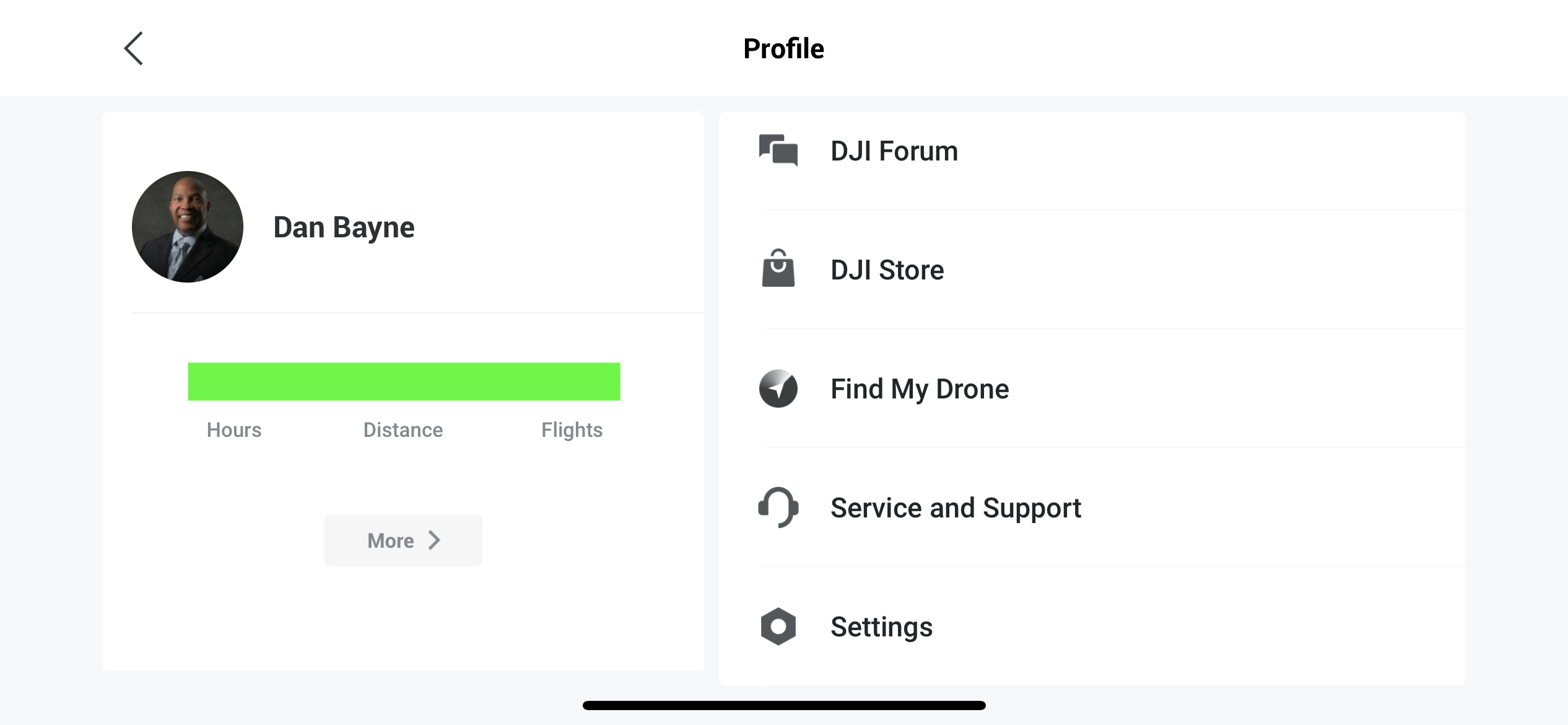
STEP 1: You can easily set up your DJI account by launching the DJI Fly app and going into Profile.


STEP 2: Once in the Profile Screen, go to Log In.


STEP 3: Input the phone or email you would like to register with and be sure to check off the “I have read” section at the bottom.


STEP 4: Create your DJI Account by setting up a password for the email address you are using to login to your DJI Account.


STEP 5: Enter the Captcha info and submit.


You’ll now be brought to the main profile page. You will see you have been set up as a generic DJI User.


STEP 6: To change your name and profile picture, tap your current djiuser_ name (this will bring you to the Profile details page, and you can change your DJI username to whatever you’d like, as well as upload a profile picture.

Navigating the DJI Fly app Main Screen
It’s now time to go into the DJI Fly app and get familiar with flying for the first time!
Connecting to the Fly App
STEP 1: If you are still in the Fly app, Exit the app. Connect your smartphone to your RC-N1 controller, as seen below.


STEP 2: Open the DJI Fly app and turn on the RC-N1
To power on the controller, press the power button once, then long-press-hold until the RC makes a power-on signal. The lights will also flash.
The Home Screen
The main screen in the DJI Fly app houses all the important flight information you will need for flight.
At a glance you are able to see (along the top):
- Aircraft Battery percentage – flight time remaining
- RC (Remote Control) signal strength
- Obstacle Avoidance mode – whether it is off, set to bypass, or hover
- Number of locked satellites (it is best to fly after 7-12 satellites have been locked)
» MORE: Go here for more information on GPS satellite lock


If you press the battery percentage icon, you are given more detailed information in regard to:
- How many minutes until RTH (return to home)
- How many minutes until the drone force lands
- How many minutes until the batteries are completely depleted


At the bottom of the app, you’ll see the following:
- How fast you are flying
- How far out the drone is from your current position
- How high the drone currently is AGL (above ground level)
- Drone positioning (Map)


By tapping the Map icon (bottom left – small up-arrow), you are able to get into 3 different Map views:
- Radar


- Small Map view


- Large Map view


Now that you are familiar with the main screen, we will talk about the various in-app options that affect flight safety.
In-App Options
To get into the many Fly app options, press the 3-button menu at the top-right of the screen.
In the options, you will see the following tabs:
- Safety
- Control
- Camera
- Transmission
- About


For our intent and purposes, we will go through the tabs that are specific to getting up in the air safely and take a few pictures and videos.
OBSTACLE AVOIDANCE
This is one of the more important options that need to be set correctly and has an impact on those new to flying drones.
There are three options for obstacle avoidance: Bypass, Brake, and Off.
OFF – Basically, this means that the top, rear, and front sensors are inactivated, allowing you to fly your drone into any obstacle that might be in the Mini 3 Pros flight path.
Why would anyone fly with the obstacle avoidance off? I myself fly with them off (on all drones), as I like to get close to objects and fly in tight areas that would not be possible with the sensors on and stopping my flight.
BYPASS – this enables the Mini 3 Pro (when in a straight line) to go around an object currently in its way. The Mini 3 Pro will pick the best path to do so.
BRAKE – when enabled, the Mini 3 Pro will basically stop and hover when an obstacle presents itself. You will then be able to determine the best route to take to get around the object.
RADAR MAP
This option, when on, will give you a real-time on-screen view of how far objects are in front of, on the side of, and behind the Mini 3 Pro. This is actually a great option to have on if you are flying with the obstacle avoidance system off as you will be presented with audible and visual alerts when close to objects, without being slowed down.
FLIGHT PROTECTION
This particular section is one you will really want to pay attention to and be sure to set. In the Flight Protection tab you can set the Maximum Height the Mini 3 Pro can fly, Its maximum flight distance, and the RTH (Return to Home) Altitude.


Max Altitude – In the US, the maximum altitude a drone can fly, as specified by the FAA is 400ft AGL. There are exceptions to this, such as when flying around high structures (buildings, towers, etc.). To stay in compliance, it is best to set the Max height at 400ft, so you won’t have to worry about it.
Max Distance – Also, in the US, the FAA has mandated that drone operators stay within visual line of sight (VLOS). This is subjective to how far a person can see without the aid of binoculars. Set the Max Distance at “no limit” and just take care to keep an eye on where the Mini 3 Pro is at all times.
Auto RTH Altitude – This is also very important. As the name suggests, RTH (return to home) is a function built into most DJI drones that, when activated (either manually by the operator or automatically at RC disconnect), the Mini 3 Pro will stop what it is doing and make its way back to you.
If the RTH height is not set at least higher than the highest object where yo